Free & No Signup Required

Place Text Behind Any Image with AI

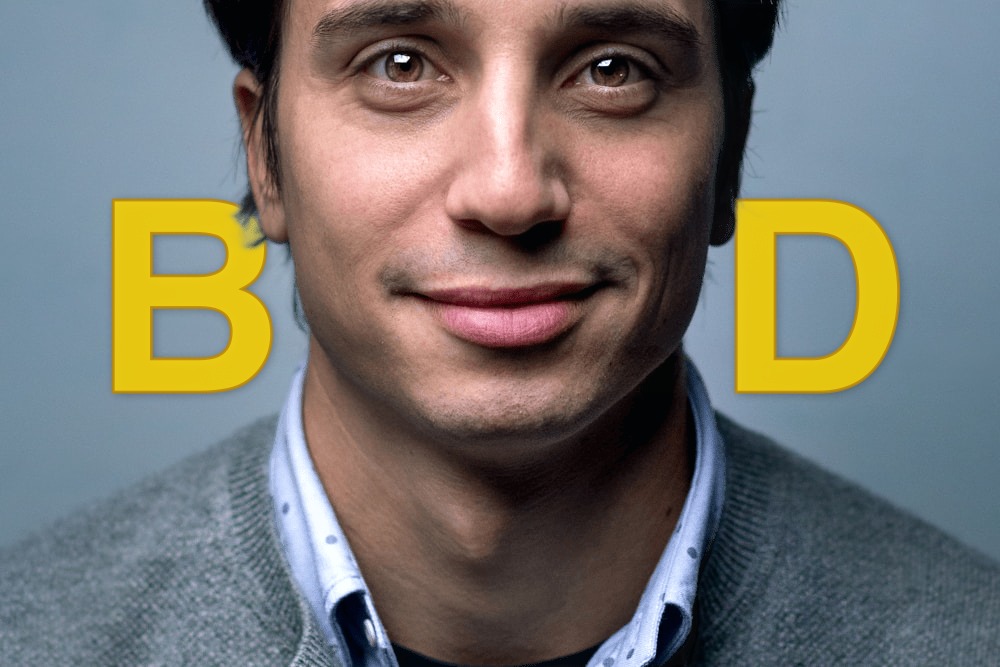
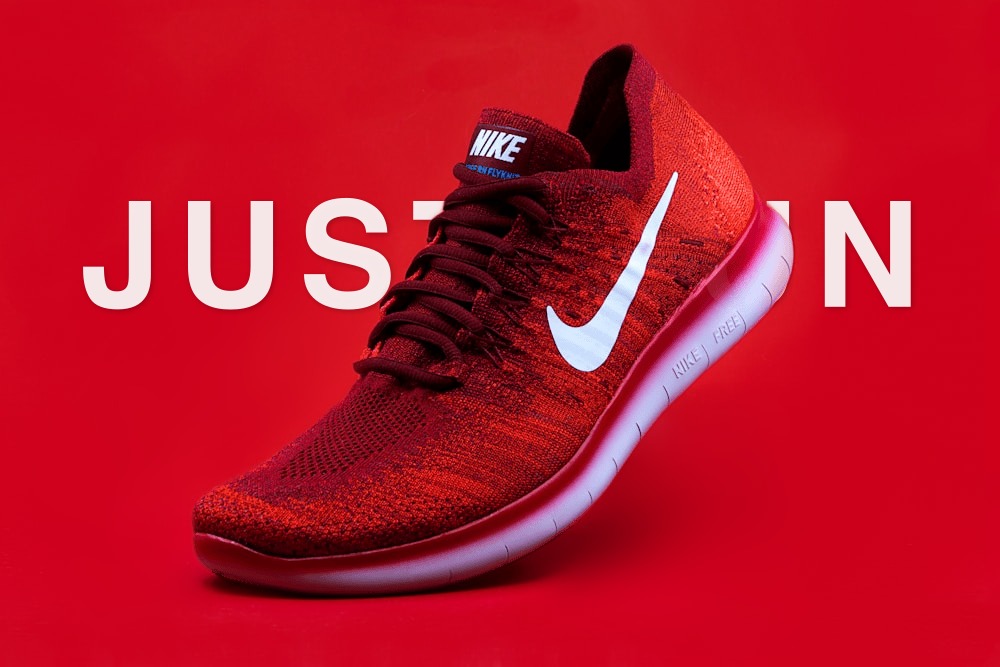
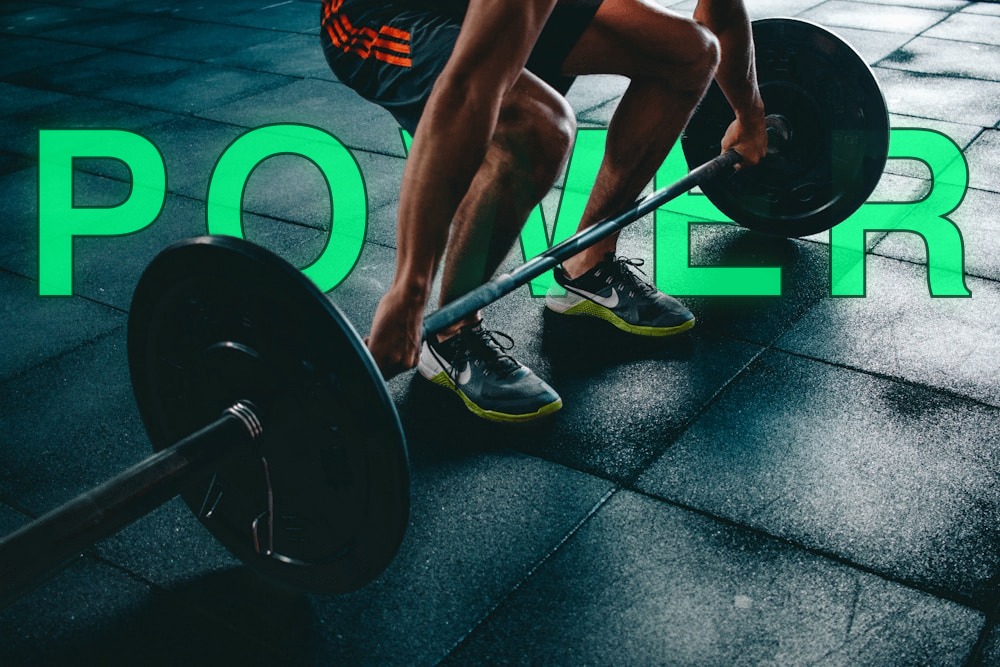
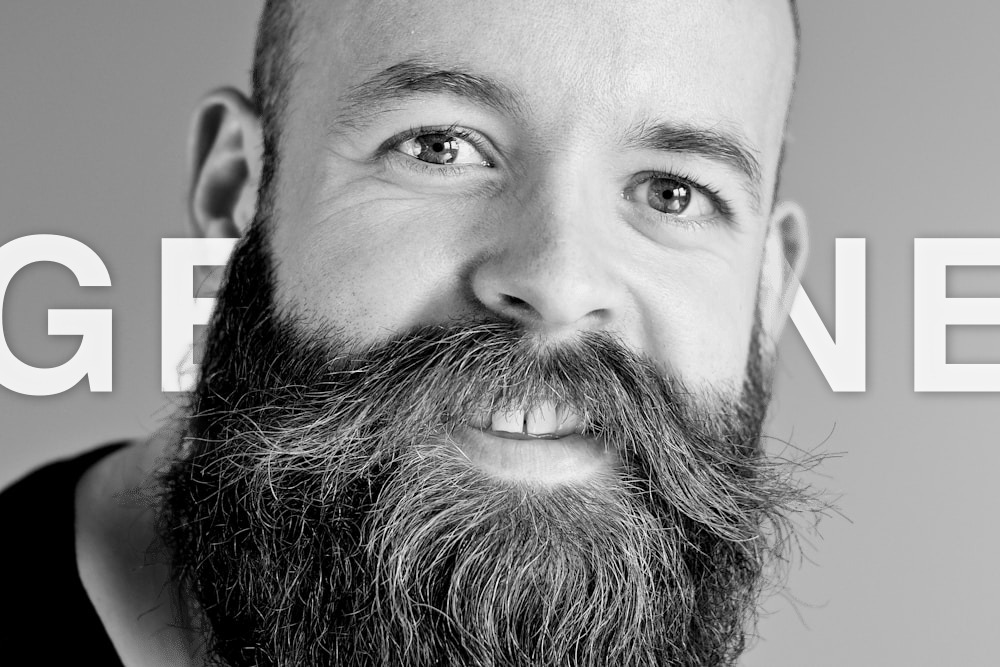
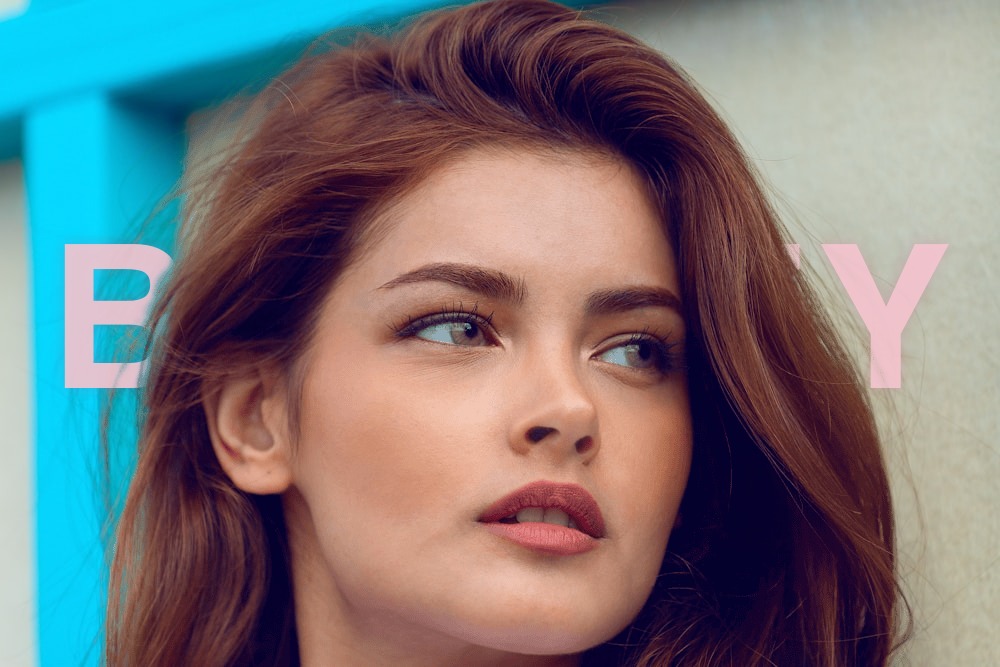
Upload any photo and let AI separate the subject from the background. Then add bold, stylized text that sits behind the subject — creating a professional depth effect used by top designers and content creators worldwide.

No signup required 100% private — runs in browser No watermark

How to Put Text Behind an Image

Creating a text-behind-image effect used to require Photoshop skills. Now it takes three simple steps — and under 30 seconds.

1

Upload Your Photo

Drop any photo with a clear subject — portraits, products, pets, athletes, or anything with a defined foreground. JPG, PNG, and WebP formats are all supported.

2

AI Separates the Subject

Our AI-powered background removal model runs entirely in your browser. It identifies the main subject, creates a precise cutout, and separates the foreground from the background — all in seconds, with no data leaving your device.

3

Add & Style Your Text

Place text between the background and the foreground subject. Choose from 35+ fonts, adjust size, color, and opacity, then add effects like 3D extrusion, shadows, stroke, skew, and perspective transforms. Export in any social media format.

Why Use the Text Behind Image Effect?

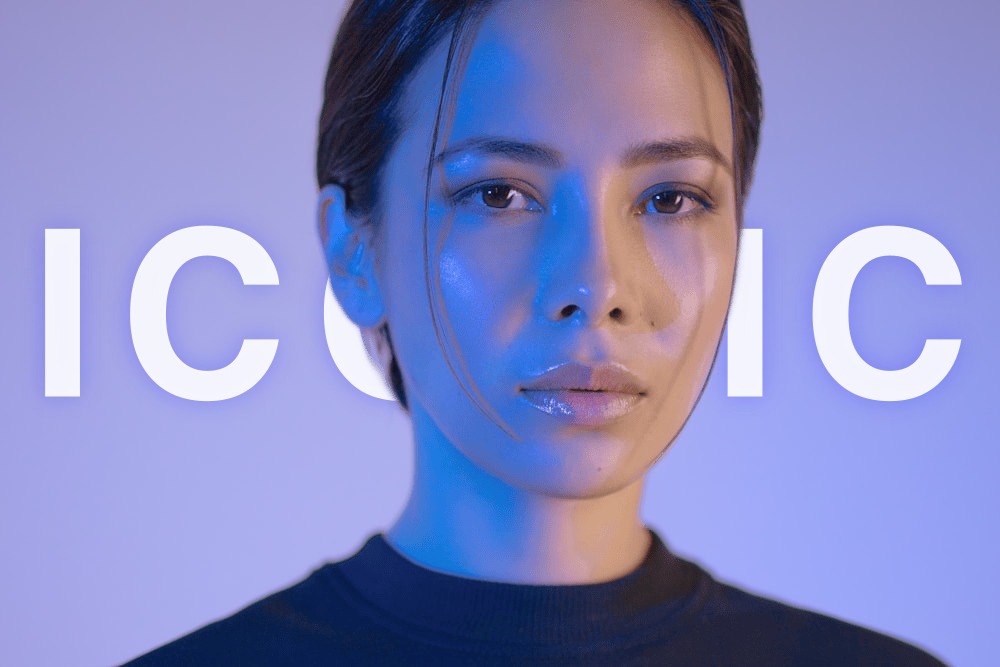
The text-behind-image technique is one of the most powerful visual design tricks used across social media, advertising, and editorial design.

1

Creates Visual Depth

Placing text behind a subject creates a layered, three-dimensional look that flat text overlays simply cannot achieve. The text appears to exist in the scene — behind the person, product, or object — rather than floating on top. This depth effect immediately makes any image more visually interesting and professional.

2

Grabs Attention Instantly

In a sea of social media content, images with text behind the subject stop the scroll. The layered text effect is unusual enough to catch the eye, yet clean enough to look intentional. Whether you're designing an Instagram post, a YouTube thumbnail, or a brand campaign, putting text behind your photo's subject is a proven way to boost engagement.

3

Professional Results Without Photoshop

Traditionally, creating text behind an image required advanced Photoshop skills — manually masking the subject, creating text layers, and carefully compositing everything together. Our AI text behind image tool automates the entire process. Upload a photo, and the AI handles the background removal. You just type your text and style it.

4

Works for Any Content Type

The text-behind-photo effect is incredibly versatile. Use it for motivational quote graphics, YouTube video thumbnails, product announcements, event posters, portfolio pieces, or personal branding. Any image with a clear subject can become a canvas for stunning layered text design.

Everything You Need to Create Text Behind Image Effects

A complete, free toolkit for placing text behind any photo subject — no design experience required

AI Background Removal

Our advanced AI segmentation model runs entirely in your browser via WebAssembly. It automatically identifies the main subject in your photo and creates a pixel-perfect cutout — the foundation of every text-behind-image effect. No manual masking, no uploads to external servers.

35+ Premium Fonts

Choose from a curated collection of display, serif, sans-serif, and handwritten fonts — from bold Impact and Bebas Neue to elegant Playfair Display and playful Pacifico. Every font is optimized for large text that looks great behind your image's subject.

Text Effects, 3D & Perspective

Go beyond simple text placement. Add stroke outlines, drop shadows, 3D extrusion with custom depth and angle, skew transforms, and full perspective controls with tilt and origin settings. Create text that looks like it truly exists in the scene behind your subject.

Social Media Export Presets

Export your text-behind-image creation perfectly sized for any platform. One-click presets for Instagram Post, Instagram Story, Twitter/X Header, Facebook Cover, YouTube Thumbnail, and custom dimensions. Download as PNG or JPG.

100% Private & Secure

Every step — from AI background removal to text rendering and image export — happens locally in your browser. Your photos are never uploaded to any server. No accounts, no tracking, no data collection. Your images stay on your device.

Completely Free, No Limits

Create as many text-behind-image designs as you want. No signup required, no watermarks added, no usage caps. This is a fully free online tool — just open it, upload a photo, add text behind the subject, and download your creation.

What You Can Create with Text Behind Image

From social media posts to brand campaigns — the text-behind-photo effect makes everything look more polished and professional

TEXT
Instagram · Twitter

Social Media Posts

Create scroll-stopping Instagram and Twitter/X posts where bold text appears behind the subject of your photo. This layered text effect is the secret behind viral personal brand content, fitness posts, and influencer graphics. Place your name, slogan, or message behind your portrait for instantly shareable content.

TEXT
YouTube

YouTube Thumbnails

The most-clicked YouTube thumbnails use text behind the presenter or subject to create visual depth. Put your video title behind yourself, a product, or a reaction face to stand out in search results and recommendations. Our YouTube Thumbnail preset (1280×720) makes export effortless.

TEXT
Portraits · Quotes

Inspirational Quote Graphics

Layer motivational or inspirational text behind beautiful portrait photos for quote graphics that get shared across Pinterest, Instagram, and Facebook. The text-behind-subject technique adds elegance that simple text overlays lack — turning ordinary quote images into art.

TEXT
Products · Brand

Brand & Product Showcase

Place your brand name or tagline behind a product photo for clean, professional marketing visuals. The text-behind-product effect is widely used in e-commerce, advertising, and editorial design to create a sense of depth and premium quality without cluttering the image.

TEXT
Events · Concerts

Event Posters & Flyers

Design eye-catching event posters by placing the event name or headline behind the featured performer, speaker, or subject. The text-behind-image technique gives posters a modern, editorial look that works for concerts, conferences, sports events, and more.

TEXT
Portfolio · Resume

Personal Portfolio & Resume

Make your portfolio or personal website stand out with a hero image featuring your name placed behind your portrait. This professional text-behind-photo effect is popular among photographers, designers, developers, and freelancers looking to make a strong first impression.

Tips for Creating Better Text Behind Image Designs

Get the most out of the text-behind-image effect with these practical design tips

1

Choose Photos with Clear Subjects

The text-behind-image effect works best when there's a well-defined subject — a person, product, or object — clearly separated from the background. Photos with busy or cluttered backgrounds make it harder for the AI to create a clean cutout. Portraits, product shots, and images with solid or blurred backgrounds produce the best results.

2

Use Large, Bold Fonts

Since the text sits behind the subject, parts of it will be partially hidden. Choose large font sizes and bold weights so the text remains readable even when partially occluded. Display fonts like Bebas Neue, Impact, Anton, and Bangers work especially well for text-behind-image designs.

3

Contrast Is Key

Pick a text color that contrasts with the background of your image. White text works great on dark backgrounds, and dark text on lighter scenes. If the background is complex, add a subtle text stroke or shadow to improve readability. The goal is for the text to be visible behind the subject without overwhelming the composition.

4

Less Text, More Impact

Keep your text short — one to three words works best for the text-behind-photo effect. A single powerful word or short phrase creates the strongest visual impact. Long sentences get lost behind the subject and reduce the effect's clarity.

5

Experiment with Position and Scale

Don't default to centering everything. Try placing your text slightly off-center, or scale it up so it extends beyond the image edges. Oversized text that's partially hidden by the subject creates a dramatic, magazine-style look. Use the position sliders or drag directly on the canvas to find the perfect placement.

6

Try 3D Extrusion and Perspective

The advanced 3D extrusion and perspective controls let you add realistic depth to your text. A subtle extrusion makes text look like it's carved into the scene. Perspective tilt can make text appear to recede into the background. These effects take a simple text-behind-image design from good to exceptional.

Frequently Asked Questions About Text Behind Image

What is a text behind image effect?

A text-behind-image effect is a design technique where text is placed between the background and the foreground subject of a photo, creating the illusion that the text exists behind the person, product, or object. This layered approach adds visual depth and professionalism that simple text overlays cannot achieve. It's widely used in social media graphics, YouTube thumbnails, advertising, and editorial design.

How do I put text behind an image for free?

With our free AI text behind image tool, it takes three steps: upload your photo, wait a few seconds for the AI to automatically remove and separate the background from the subject, then type your text and style it. The text is automatically layered between the background and the foreground subject. No Photoshop, no design skills needed — and it's completely free with no signup required.

Is this text behind image tool really free?

Yes, completely free. There is no signup required, no watermarks added to your exports, and no usage limits. The AI background removal and all editing features run entirely in your browser — we don't even have a server to process your images. You can create and download as many text-behind-image designs as you want.

Are my images uploaded to a server?

No. All processing happens locally in your browser using WebAssembly-powered AI technology. Your images never leave your device at any point — not during background removal, not during editing, and not during export. This ensures complete privacy for all your photos.

What types of photos work best for text behind image?

Photos with a clear, well-defined subject work best — portraits, product shots, athletes, pets, or any image where the main subject stands out from the background. The AI needs a distinguishable foreground element to create the separation. Photos with busy, cluttered backgrounds or subjects that blend into the background may produce less precise results.

What image formats are supported?

You can upload JPG, PNG, and WebP images. Export is available in both PNG (lossless, with transparency support) and JPG (with adjustable quality compression) formats. Social media presets automatically size your export for Instagram, Twitter/X, YouTube, Facebook, and custom dimensions.

What's the difference between text behind image and a regular text overlay?

A regular text overlay places text on top of the entire image — it covers the subject. A text-behind-image effect layers text between the background and the foreground subject, so the subject appears in front of the text. This creates a natural depth effect where the text seems to exist within the scene, rather than pasted on top. The result looks significantly more professional and engaging.

Can I use text behind image for YouTube thumbnails?

Absolutely — YouTube thumbnails are one of the most popular use cases for the text-behind-image effect. Place your video title or a key phrase behind yourself or the subject of your thumbnail to create depth that grabs attention in search results. Use our YouTube Thumbnail preset (1280×720) for perfect sizing.

Does the text behind image tool work on mobile?

Yes, the tool works on modern mobile browsers including Chrome and Safari on iOS and Android. For the full editing experience with all advanced text effects like 3D extrusion, perspective, and skew, we recommend using a desktop or tablet. Basic text-behind-image creation works well on mobile.

How does the AI background removal work?

We use a state-of-the-art image segmentation model that runs directly in your browser via WebAssembly. The AI analyzes your photo, identifies the main subject, and generates a precise alpha mask to separate the foreground from the background. This creates two layers — the original background and a transparent foreground — with your text placed between them to achieve the text-behind-image effect.

Still have questions? Contact us

Free — No Signup Required

Ready to Place Text Behind Your Image?

Join thousands of creators, designers, and marketers making stunning text-behind-image effects. Free, private, and no signup needed.

Join thousands of creators — no credit card needed